Purchase Order Amendment
Bestätigte Bestellungen ändern sich. Im Standard müssen Sie abbrechen und neu erstellen. Purchase Order Amendment macht das sauber und nachvollziehbar.
Ihr Nutzen
Stornierung, Mengenreduzierung, Erhöhung, neue Positionen – mit automatischen Folgeaktionen.
Smart Buttons verlinken Original-PO, Folge-POs, Rücksendungen und Gutschriften. Lieferanten-PDF per E-Mail.
Funktionen im Detail
Purchase Order Amendment
Version 18.0.3.0.0 295,00 EUR Depends: purchase_stock Depends: account Depends: dtx_approval
Manage amendments on confirmed purchase orders — cancel, reduce, increase, or add positions with a full approval workflow, automatic follow-up POs, return pickings, and credit notes.
Key Features
Structured Change Management
Create formal amendment documents for any changes to confirmed purchase orders. Each amendment tracks exactly what changed, by how much, and why.
Four Amendment Actions
| Action | Description | Effect on Execution |
|---|---|---|
Cancel | Fully cancel a position | Quantity set to 0 on origin PO |
Reduce | Lower the ordered quantity | Quantity reduced on origin PO |
Increase | Raise the ordered quantity | New follow-up PO with the difference |
Add New | Add an entirely new position | New follow-up PO with the new position |
Approval Integration
Full integration with the dtx_approval module. Configure
approval stages for amendments — or skip approval entirely if no stages
are defined.
Vendor Communication
Send amendments to vendors via email with a PDF report. Track vendor acceptance or rejection directly on the amendment form.
Downstream Adjustments
When reducing below received or invoiced quantities, the system automatically creates return pickings and vendor credit notes with full traceability back to the amendment.
How It Works
Create Amendment
Open a confirmed PO and click Create Amendment. A wizard shows all PO lines where you can set the change quantity for each position.
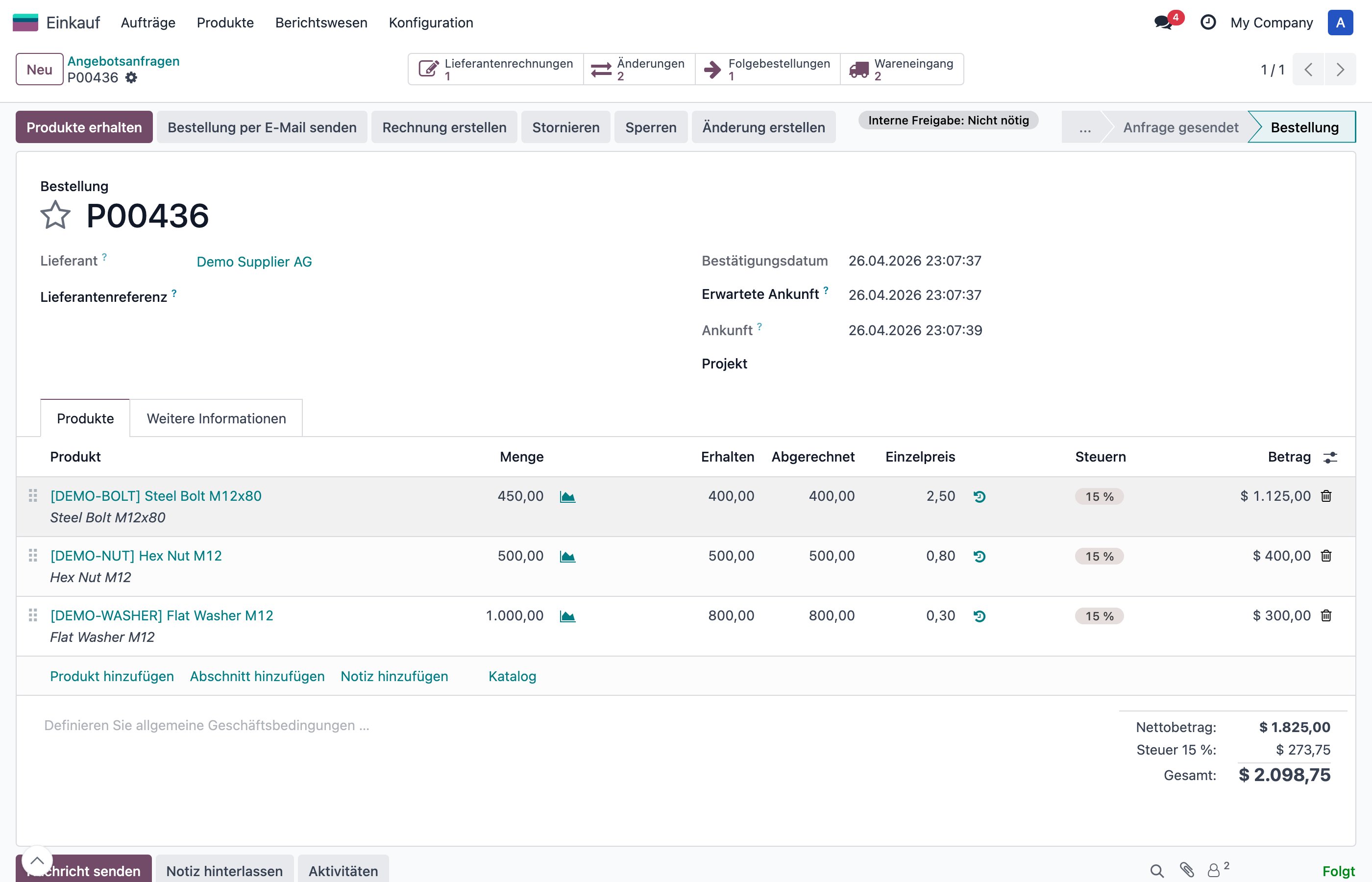
Confirmed purchase order with the Create Amendment button in the header.
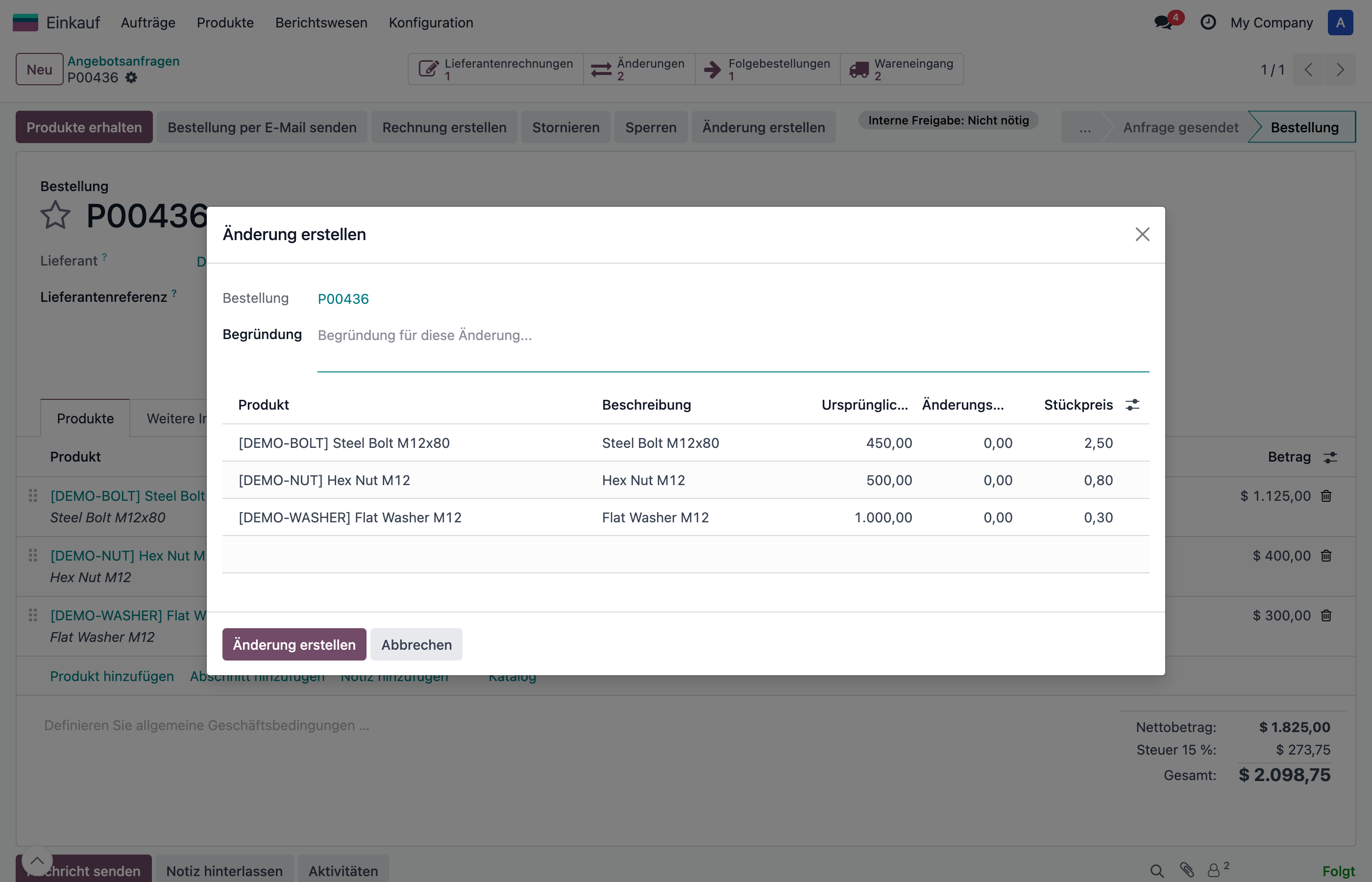
The amendment wizard showing all PO lines with change quantity input.
Review & Submit
The created amendment shows all changes with original quantities, change amounts, and resulting quantities. Submit it for internal approval.
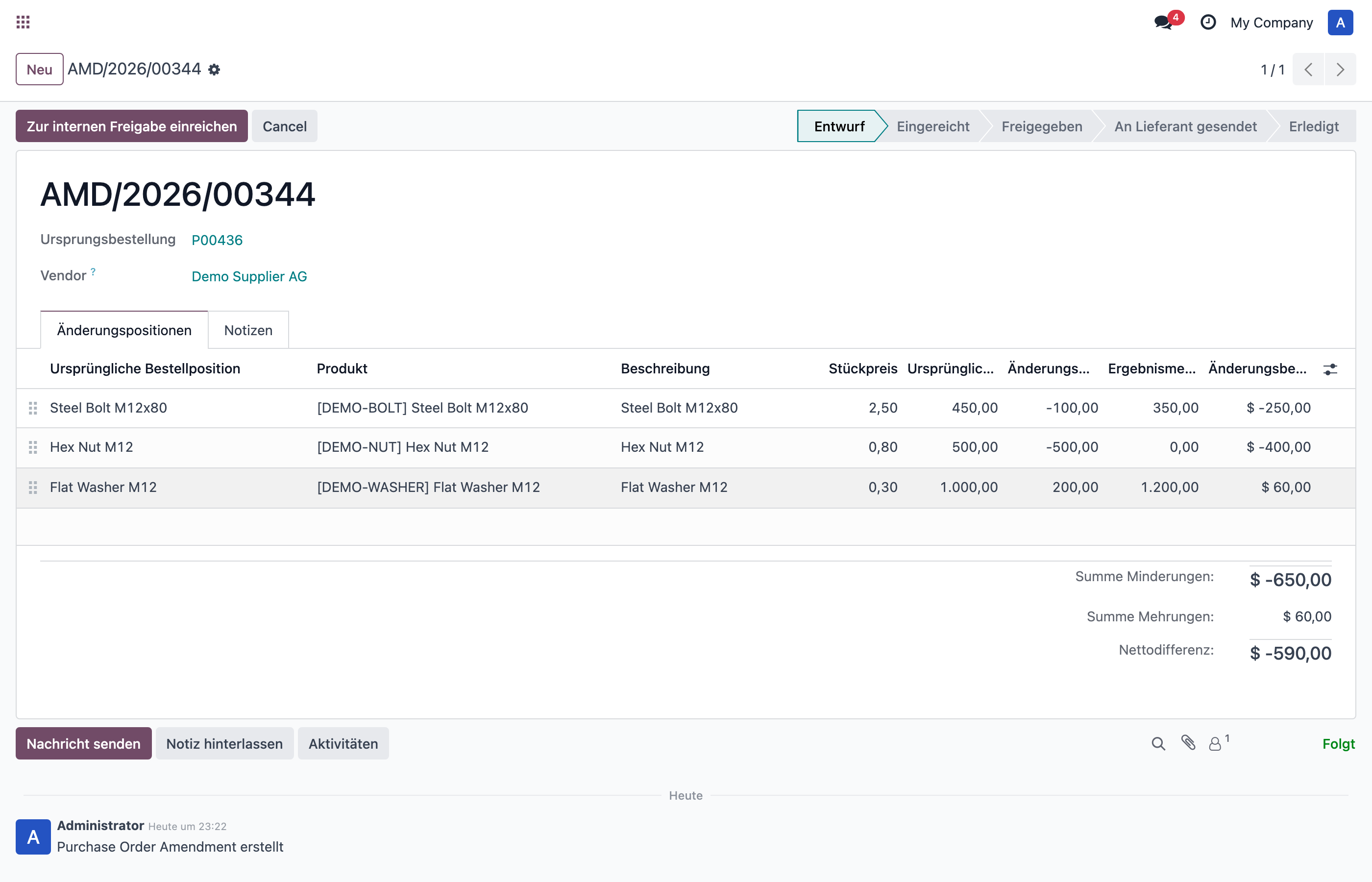
Amendment in Draft status with three lines: reduce, cancel, and increase.
Approve
Approvers review and approve or refuse the amendment. Once approved, it can be sent to the vendor or executed directly.
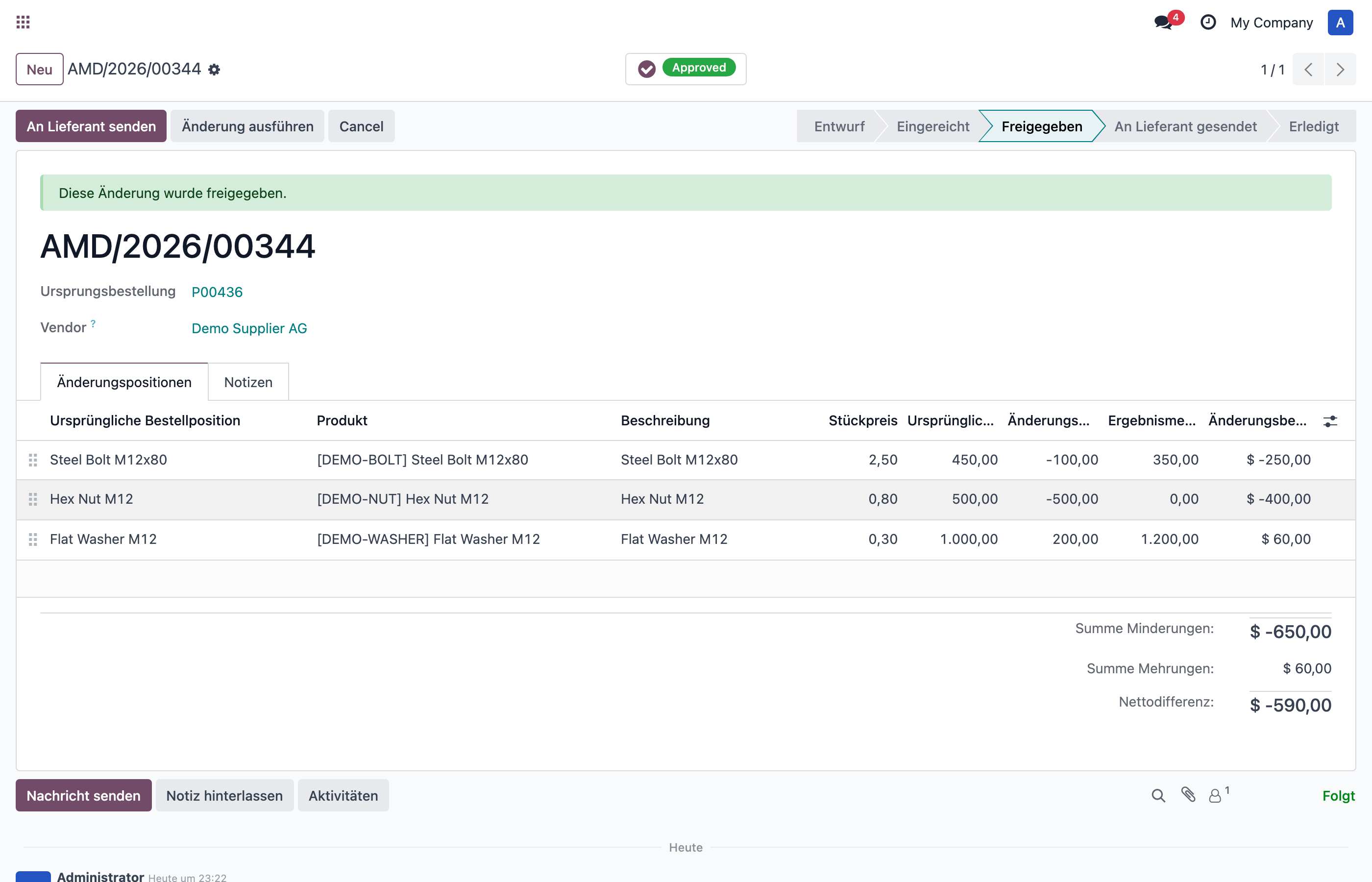
Approved amendment with Send to Vendor and Execute Amendment buttons.
Execute
Execute the amendment to apply all changes. Reductions adjust the origin PO directly, increases create a new follow-up PO. A confirmation dialog warns about conflicts with already received or invoiced quantities.
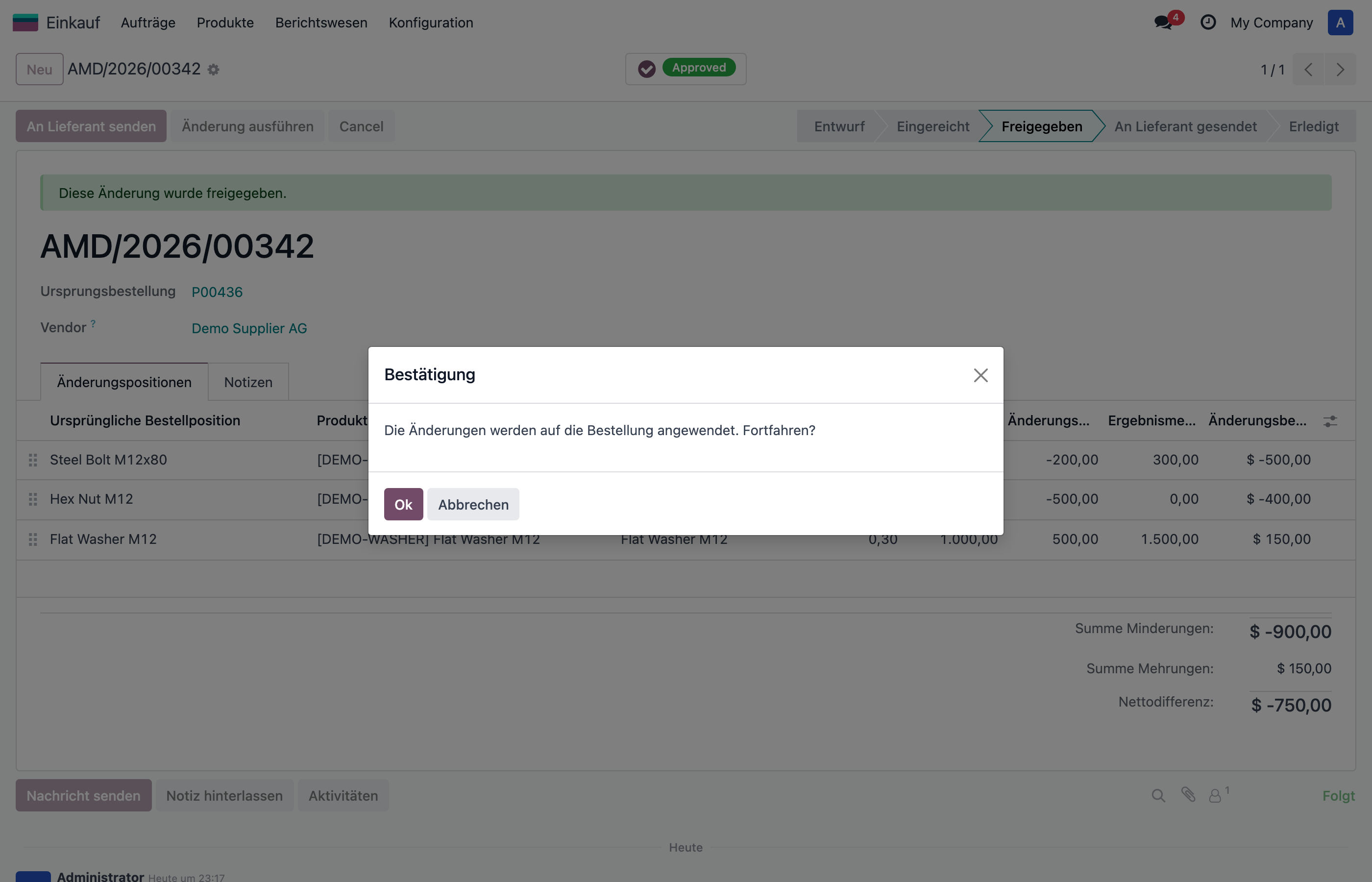
Confirmation dialog before executing the amendment.
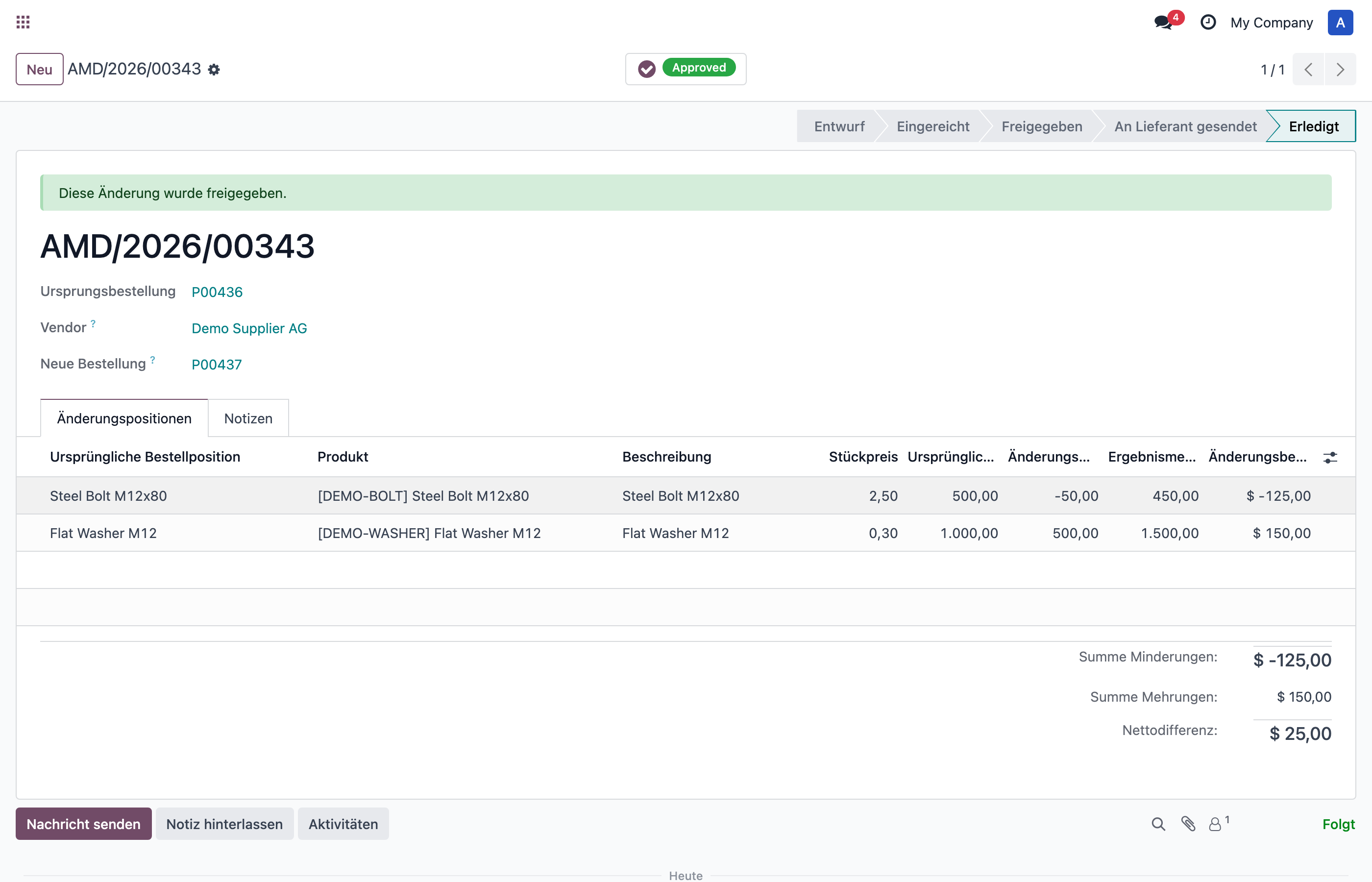
Executed amendment in Done status with link to the new follow-up PO.
Traceability & Smart Buttons
All documents are linked via smart buttons for full traceability across the entire amendment lifecycle:
| On Document | Smart Button | Links To |
|---|---|---|
| Origin PO | Amendments | All amendments for this PO |
| Origin PO | Follow-up POs | POs created from amendments |
| Follow-up PO | Origin PO | The original purchase order |
| Follow-up PO | Source Amendment | The amendment that created this PO |
| Amendment | Returns | Return pickings (if reductions below received qty) |
| Amendment | Credit Notes | Vendor credit notes (if reductions below invoiced qty) |
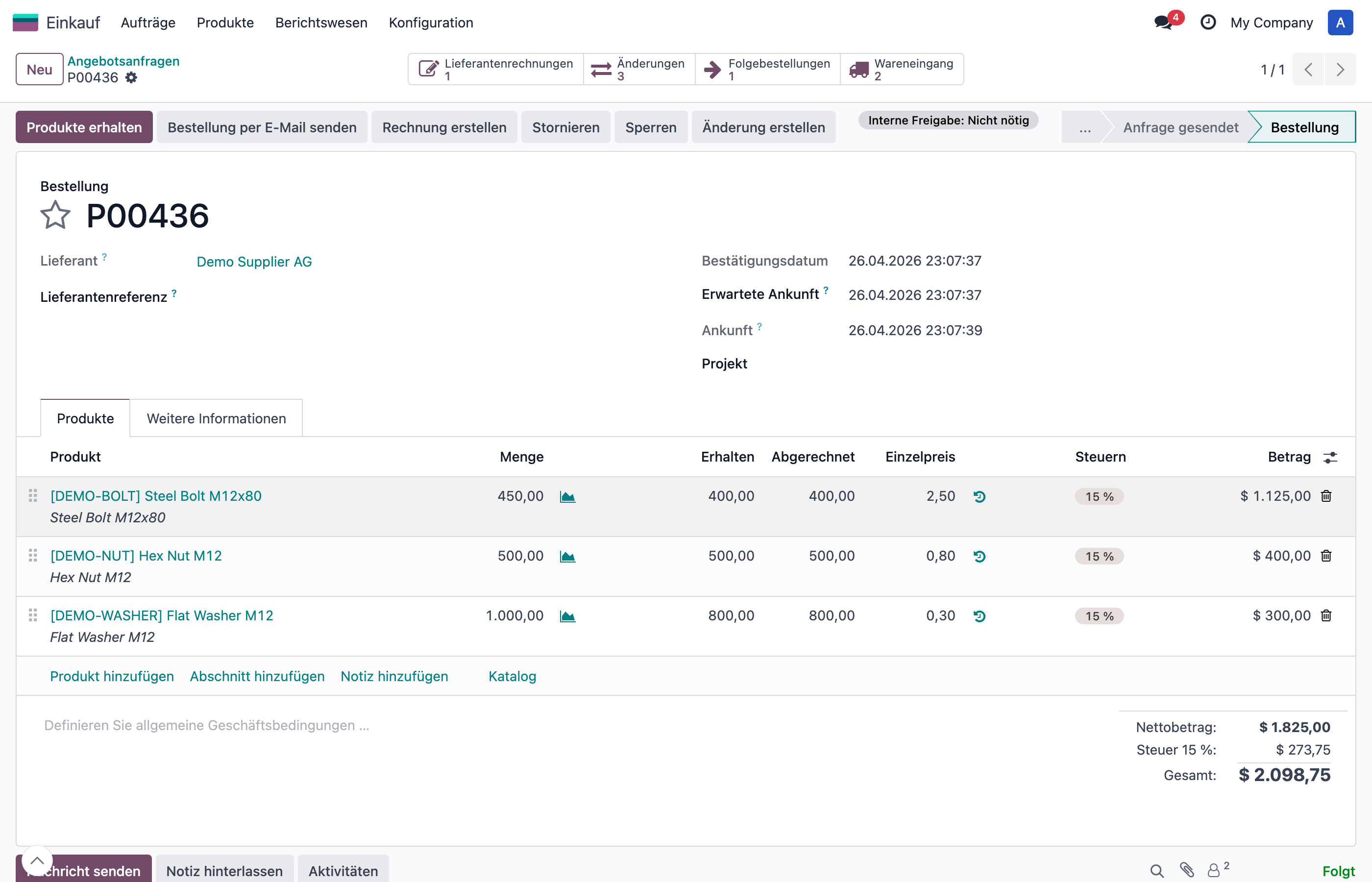
Purchase order with smart buttons showing Amendments, Follow-up POs, and Receipts.
Amendment List View
Access all amendments via Purchases → Amendments. Filter by status, vendor, or origin order. Group by status for a quick overview.
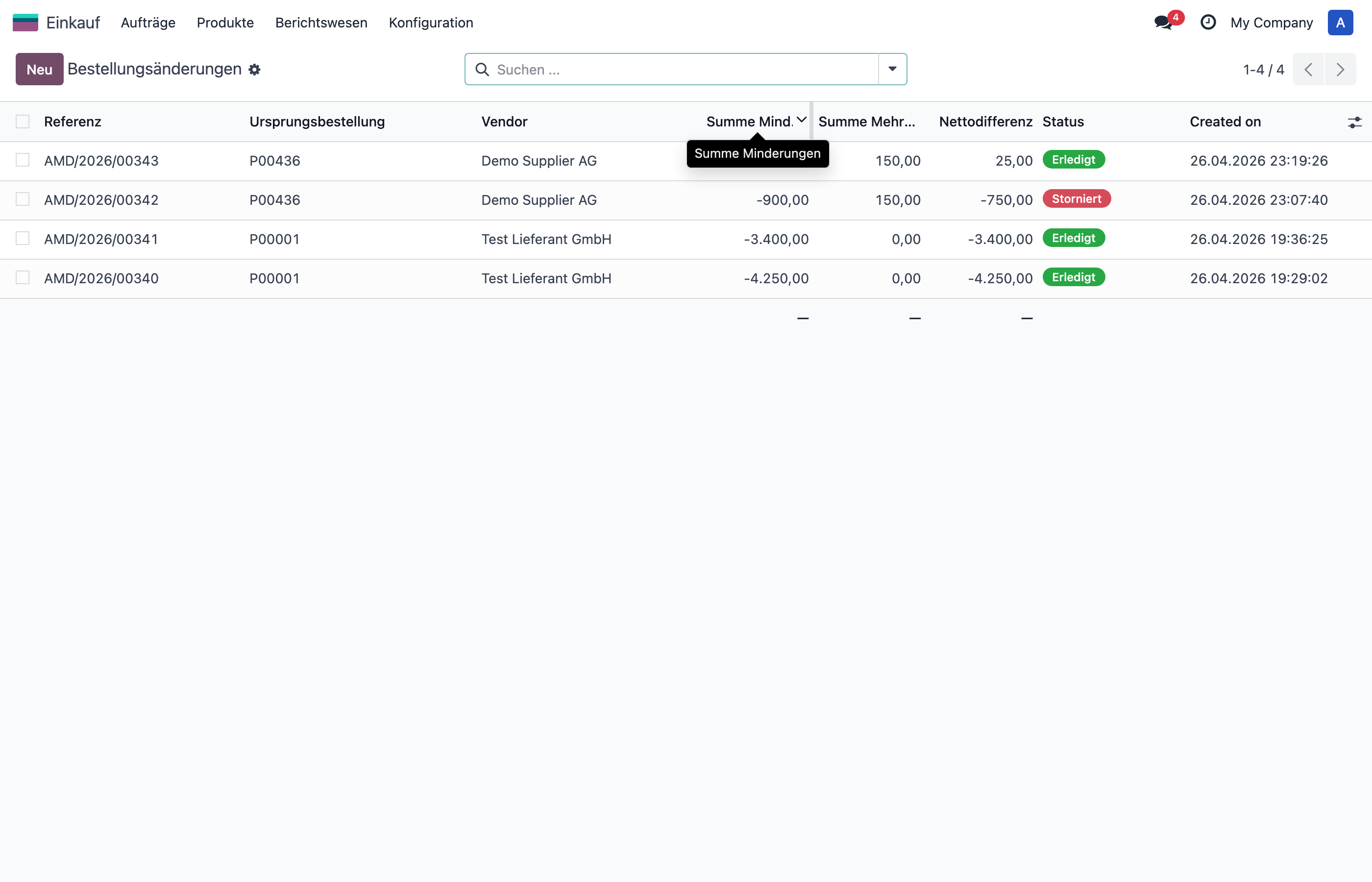
Amendment list view with status badges, amounts, and vendor information.
Workflow Overview
 Draft ───> Submitted ───> Approved ──┬──> Sent to Vendor ──┬──> Done
 │ │ │
 v │ v
 Rejected │ Vendor Rejected
 │ │ │
 v v v
 Reset to Draft Execute directly Resend / Edit
 │
 v
 Done
 (Origin PO updated
+ Follow-up PO created)Configuration
User Groups
Go to Settings → Users & Companies → Users and assign the Purchase Amendment / User or Administrator group.
Approval Stages
To require approval for amendments, create approval stages with document type
Purchase Amendment in
Purchases → Configuration → Approval Stages.
Purchase Amendment exist, amendments are automatically approved
upon submission.
Technical Details
| Item | Value |
|---|---|
| Module | dtx_purchase_amendment |
| Models | dtx.purchase.amendment, dtx.purchase.amendment.line |
| Dependencies | purchase_stock, account, dtx_approval |
| License | OPL-1 |
| Author | Detalex GmbH |
| Odoo Version | 18.0 |
Purchase Order Amendment | Version 18.0.3.0.0 | 295,00 EUR
© 2026 Detalex GmbH
Förderfähige Maßnahme
Die Einführung und Anpassung von ERP-Systemen wie Odoo ist in Deutschland förderfähig. Unternehmen können von staatlichen Förderprogrammen profitieren – z. B. über den ERP-Förderkredit Digitalisierung der KfW, Landesprogramme wie den Digitalbonus Bayern oder den Digital-Zuschuss Hessen sowie die kostenlosen Beratungsangebote der Mittelstand-Digital Zentren des BMWK (Stand: Juli 2026). Wir unterstützen Sie gerne bei der Antragstellung und beraten Sie zu den Möglichkeiten für Ihr Unternehmen.
Interesse geweckt?
Lassen Sie sich unverbindlich beraten – wir zeigen Ihnen, wie dieses Modul in Ihre Prozesse passt.
Beratungsgespräch vereinbaren